
Request a Login Code
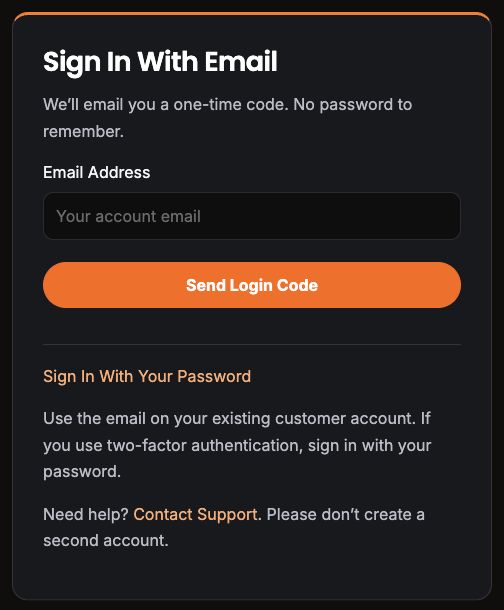
- Open the customer login page and choose Email Me a Login Code. You can also open Email Sign-In directly.
- Enter the email address on your existing customer account.
- Select Send Login Code. Keep that page open while you check your inbox.
Use the email that receives your invoices. Please do not create a second account.
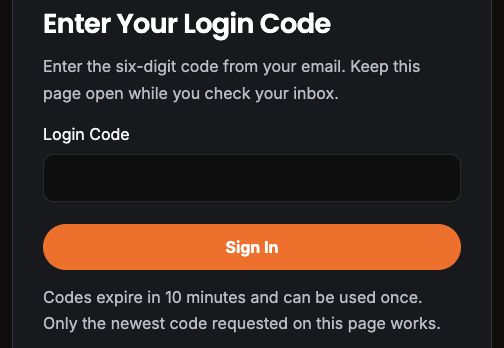
Enter Your Login Code
- Open the newest sign-in email. Check Spam or Junk if needed.
- Return to the page where you requested the code and enter its six digits.
- Select Sign In. Your customer portal will open.
Code Not Working?
Codes expire after 10 minutes and work once. Only the newest code requested on that page works. Use Send a New Code if needed.
Do not share your code. Our support team will never ask for it.
If your account uses two-factor authentication or a security question, choose Sign In With Your Password. You can use the password help below if you need it.
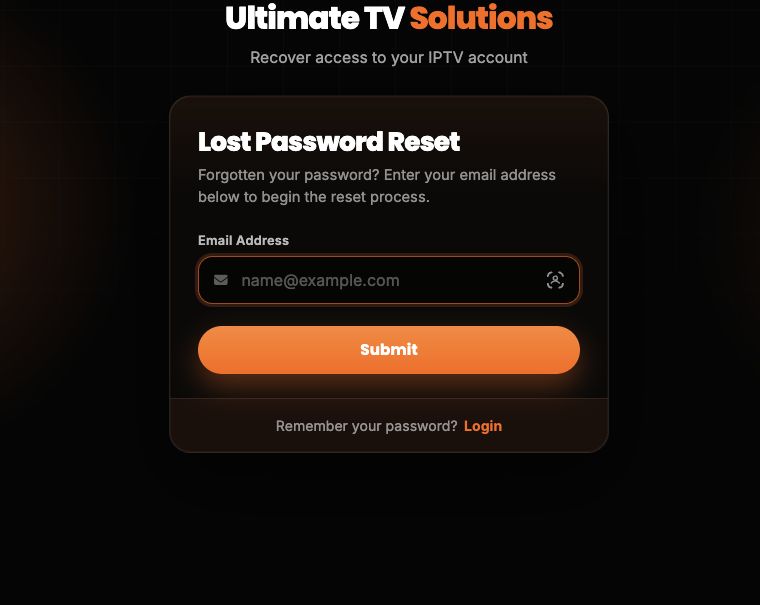
Reset Your Password
Use these steps if you prefer a password, or your account needs password sign-in. Already know your password? Go straight to Sign In.
- Open the password reset page.
- Enter the email address that receives your UTV45 invoices, then click Submit.
- Open the reset email and follow its link to choose a new password. Check Spam or Junk if needed.
No reset email, or no access to that inbox? Contact Support so we can check your account. Please do not create a second account.
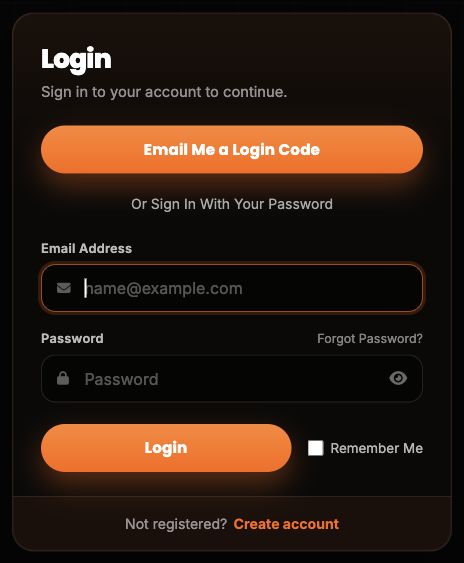
Sign In
- Open Your Customer Portal.
- Enter your billing Email Address and portal Password.
- Click Login.
Your Portal Login
Your TV app login may be different. Resetting your portal password does not reset your TV app password.
Find Your Invoice
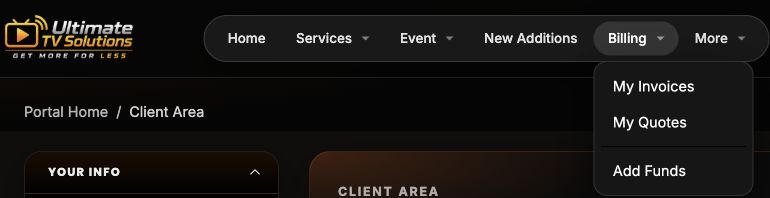
- Choose Billing > My Invoices. On a phone, open the navigation menu first if it is collapsed.
- Open the invoice marked Unpaid.
- Check the service, amount and due date before paying.
If you have no unpaid invoices, there is nothing to pay now. If your subscription is missing, contact support so we can check its billing link.
Pay & Confirm
- Select Cash App, Venmo or Zelle above the payment box on your invoice.
- Send the exact remaining balance and use your invoice number as the payment note.
- Return to that invoice and select I've Paid — Check Payment to check for confirmation.
You do not need to order another subscription to pay an existing invoice.
If your invoice stays Unpaid after you send payment, contact support with your invoice number and receipt before paying again.
Future Payments
You pay each invoice yourself. Signing in or paying one invoice does not turn on automatic monthly charges.
Check future invoices and pay them before their due dates.
View My InvoicesWe Can Help.
For sign-in, subscription or payment questions, visit our Support Hub.